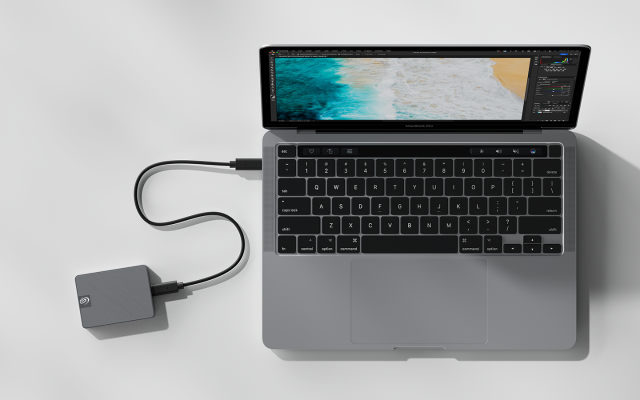
If you own a Mac, you’ve probably had that heart-stopping moment when your laptop freezes, your screen goes black, or you accidentally delete a folder full of important files. It’s in these moments that you realize just how valuable your data really is — and how unprepared most of us are to lose it.
That’s exactly why Mac OS external drive backup software has become one of the most searched-for solutions among Mac users today. Whether you’re a photographer with years of RAW files, a freelancer juggling client documents, or just someone who doesn’t want to lose family photos, backing up your Mac to an external drive is one of the smartest habits you can build.
In this guide, we’ll break down everything you need to know: why backups matter, how Mac’s built-in tools work, the best third-party software options, and how to choose the right solution for your needs.
How to Check Linux OS Version Command
Why You Need External Drive Backup Software for Your Mac
Apple builds solid hardware, but no computer is immune to failure. Hard drives crash, SSDs wear out, coffee spills happen, and ransomware doesn’t discriminate between Windows and macOS anymore. Relying solely on cloud storage isn’t always enough either — internet outages, subscription lapses, or account issues can leave you locked out when you need your files most.
An external drive backup gives you a physical, offline copy of your data that you control. Combined with the right software, it becomes a fast, reliable safety net that doesn’t depend on your internet connection or a third-party server.
Here’s what good backup software does for you:
- Protects against hardware failure and accidental deletion
- Creates a bootable backup so you can get back to work immediately
- Automates the backup process so you never forget
- Allows version history, so you can restore an older file if needed
- Gives you full control over your data privacy
Built-In Option: Time Machine
Before diving into third-party tools, it’s worth mentioning Apple’s own solution — Time Machine. It’s included free with every Mac and is genuinely a great starting point.
Time Machine automatically backs up your entire system to an external drive on an hourly, daily, and weekly basis, keeping older versions of files as long as there’s space. Setup is simple: plug in an external drive, go to System Settings, select Time Machine, and choose your disk.
That said, Time Machine has limitations. It doesn’t always handle bootable backups well, has limited flexibility for scheduling or selective backups, and can be slow when restoring a full system. This is where dedicated third-party Mac OS external drive backup software comes in.
Top Mac OS External Drive Backup Software Options
1. Carbon Copy Cloner (CCC)
Widely regarded as the gold standard for Mac backups, Carbon Copy Cloner creates a fully bootable clone of your Mac on an external drive. If your internal drive fails, you can literally boot your Mac from the external backup and keep working without missing a beat.
Best for: Users who want a complete, bootable backup with minimal fuss.
2. SuperDuper!
SuperDuper is another long-standing favorite, known for its simplicity and reliability. It offers both full clones and incremental “Smart Update” backups, meaning after your first full backup, future backups only copy what’s changed — saving time and drive space.
Best for: Beginners who want a no-nonsense, “set it and forget it” backup tool.
3. Acronis Cyber Protect Home Office
Acronis combines backup software with built-in ransomware protection and antivirus features. It supports backups to external drives, network drives, and the cloud simultaneously, giving you a hybrid approach to data safety.
Best for: Users who want backup and cybersecurity protection in one package.
4. ChronoSync
ChronoSync is a powerful tool popular among professionals who need advanced scheduling, folder synchronization, and support for multiple destinations, including external drives and remote servers.
Best for: Power users and small businesses needing granular control over backup rules.
5. Get Backup Pro
A budget-friendly yet capable option, Get Backup Pro supports full backups, incremental backups, and bootable clones, along with an encryption feature to keep sensitive files secure.
Best for: Users looking for an affordable all-in-one backup tool.
How to Choose the Right Backup Software for Your Mac
With several solid options available, choosing the right one comes down to your specific needs. Ask yourself:
- Do I need a bootable backup? If yes, prioritize Carbon Copy Cloner or SuperDuper.
- Do I want built-in security features? Acronis is worth considering.
- Am I backing up for a business with multiple devices? ChronoSync offers more advanced scheduling and automation.
- Am I on a tight budget? Get Backup Pro or Time Machine (free) may be sufficient.
- How often do my files change? Frequent changes call for software with strong incremental backup support to save time and storage space.
Best Practices for Backing Up Your Mac to an External Drive
Choosing the software is only half the equation. Here are a few habits that will make your backup strategy far more reliable:
- Follow the 3-2-1 rule — Keep 3 copies of your data, on 2 different storage types, with 1 copy stored offsite (like cloud storage).
- Automate your backups — Manual backups are easy to forget. Set your software to run on a schedule.
- Test your backups periodically — A backup is only useful if it actually works. Try restoring a file occasionally to confirm everything is functioning correctly.
- Use encryption — If your external drive is portable, encrypt it in case it’s lost or stolen.
- Label and organize multiple drives — If you use more than one external drive, keep track of what’s backed up where and when.
Final Thoughts
Losing important files doesn’t have to be a nightmare scenario. With the right Mac OS external drive backup software, you can protect your documents, photos, and system files with minimal effort. Whether you stick with Apple’s built-in Time Machine or upgrade to a dedicated tool like Carbon Copy Cloner or Acronis, the most important step is simply getting started.
Set up your backup today — future you will be grateful you did.