Mac Not Working Properly? How to Reinstall macOS and Restore Peak Performance
Introduction
Let’s be honest — there’s nothing more frustrating than a Mac that’s acting up. Maybe it’s running painfully slow, freezing randomly, or you’ve just decided to sell it and want to wipe it clean. Whatever the reason, knowing how to Reinstall Mac OS is one of the most powerful troubleshooting tools you have.
The good news? It’s not as scary as it sounds. Apple has made the reinstallation process surprisingly straightforward, and you don’t need to be a tech wizard to get through it. Here’s everything you need, step by step, to get your Mac back in perfect shape.
Why Would You Need to Reinstall Mac OS?
Before jumping into the how, it’s worth understanding the why. People reinstall macOS for all sorts of reasons:
- Persistent software bugs that won’t go away no matter what you try
- Slow performance even after clearing storage and restarting
- Malware or virus infections that need a clean slate
- Selling or gifting your Mac and wanting to erase personal data
- A corrupted operating system after a failed update
- Starting completely fresh after years of cluttered files and apps
No matter which camp you’re in, reinstalling macOS is the right move.
Before You Start: The Most Important Step
Back Up Your Data First
This cannot be stressed enough — always back up before reinstalling Mac OS. A reinstall can erase everything on your drive, and there’s no going back once that process starts.
Here are your two best options:
Option 1 — Time Machine (Built-in and Easy) Connect an external hard drive, go to System Settings → General → Time Machine, and create a full backup. This lets you restore your entire system if needed.
Option 2 — Manual Backup Copy your important files — documents, photos, downloads — to an external drive or cloud storage like iCloud Drive, Google Drive, or Dropbox.
Take your time here. This step is everything.
How to Reinstall Mac OS: Two Main Methods
There are two primary ways to reinstall macOS, depending on your situation and your Mac model. Let’s break both down clearly.
Method 1: Reinstall macOS Using macOS Recovery (Recommended)
This is the most common and beginner-friendly method. It works on both Intel-based Macs and Apple Silicon Macs (M1, M2, M3, M4 chips).
Step 1: Shut Down Your Mac
Close all open apps and shut your Mac down completely. Don’t just put it to sleep — a full shutdown is required.
Step 2: Boot Into macOS Recovery Mode
This step differs based on your Mac’s chip:
For Apple Silicon Macs (M1, M2, M3, M4):
- Press and hold the Power button until you see the startup options screen
- Click Options, then click Continue
- If prompted, enter your administrator password
For Intel-Based Macs:
- Press the Power button, then immediately hold Command (⌘) + R
- Keep holding until you see the Apple logo or a spinning globe
- Release the keys once the Recovery screen appears
Step 3: Choose “Reinstall macOS”
Once you’re in macOS Recovery, you’ll see a window with a few options. Click “Reinstall macOS [version name]” — for example, it might say “Reinstall macOS Sonoma” or “Reinstall macOS Ventura.”
Click Continue.
Step 4: Agree to the License Agreement
Apple will show you a software license agreement. Read it (or at least scroll through it) and click Agree.
Step 5: Choose Your Installation Disk
You’ll be asked which disk to install macOS on. In most cases, this will be your main drive, often called “Macintosh HD.”
Select it and click Continue.
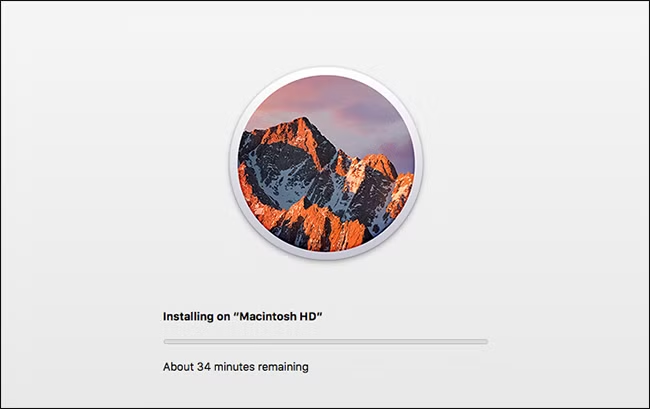
Step 6: Let the Installation Run
Now sit back and relax. The Mac will download and install macOS automatically. This process can take anywhere from 20 minutes to over an hour, depending on your internet speed and Mac model.
Your Mac may restart several times during this process — that’s completely normal. Don’t panic and don’t interrupt it.
Step 7: Set Up Your Mac
Once the installation is complete, your Mac will boot up and walk you through the setup process. You can either:
- Restore from a Time Machine backup to get all your files and apps back
- Set it up as new for a completely fresh start
Method 2: Erase Everything and Do a Clean Install
If you want a truly fresh start — maybe you’re selling your Mac or you’ve had serious software issues — you’ll want to erase your disk first before reinstalling.
⚠️ Warning: This will permanently delete everything on your Mac. Make sure your backup is done before proceeding.
Step 1: Boot Into macOS Recovery
Follow the same steps as Method 1 to enter Recovery Mode.
Step 2: Open Disk Utility
From the macOS Utilities window, click “Disk Utility” and then Continue.
Step 3: Erase Your Drive
In Disk Utility:
- Select “Macintosh HD” (or your startup disk) from the left sidebar
- Click “Erase” at the top
- Choose APFS as the format (recommended for modern Macs)
- Give it a name (you can keep “Macintosh HD”)
- Click Erase
Wait for it to finish, then close Disk Utility.
Step 4: Reinstall macOS
Back on the main Recovery screen, click “Reinstall macOS” and follow the on-screen instructions just like in Method 1.
This time, you’ll be setting up a brand new Mac experience from scratch.
What Version of macOS Will Be Installed?
Great question. When you reinstall via Recovery, the version that gets installed depends on which recovery mode you use:
| Keyboard Shortcut (Intel Macs) | macOS Version Installed |
|---|---|
| Command + R | The macOS version that came with your Mac (or the last installed version) |
| Option + Command + R | The latest macOS compatible with your Mac |
| Shift + Option + Command + R | The original macOS your Mac shipped with |
For Apple Silicon Macs, the version installed via the Power button method is usually your currently installed version or the latest compatible one.
Reinstalling macOS Without Internet: Is It Possible?
In most cases, macOS Recovery needs an internet connection to download the installer. However, if you’ve previously downloaded a full macOS installer from the App Store, you can create a bootable USB installer and reinstall without Wi-Fi.
Here’s how to create one (quick version):
- Download the macOS installer from the Mac App Store
- Insert a USB drive (at least 16GB)
- Open Terminal and run the
createinstallmediacommand (Apple provides this on their support page for each macOS version) - Boot from the USB by holding Option (⌥) at startup and selecting the USB drive
- Proceed with the reinstall from there
This is especially useful if you’re reinstalling on multiple Macs or in a location with slow or no internet.
Common Issues When Reinstalling macOS (And How to Fix Them)
“An Internet Connection Is Required”
Make sure your Wi-Fi is connected before entering Recovery Mode. If the connection is weak, move closer to your router or use an Ethernet adapter.
Installation Gets Stuck or Freezes
Don’t force restart immediately — give it time. If it’s truly frozen for over 30 minutes with no disk activity, you can hold the Power button to restart, then try again.
“This Disk Cannot Be Used to Start Up Your Computer”
This usually means the disk formatting is wrong. Go back into Disk Utility, erase the drive as APFS, then try reinstalling.
Mac Boots Into a Globe at Startup
This means it’s loading macOS Internet Recovery. It’ll still work — just slower, as it’s downloading everything over the internet. Be patient.
Forgot Your Apple ID Password
You may need your Apple ID to activate macOS after reinstallation. Reset it at iforgot.apple.com before starting.
Tips for After the Reinstall
Once your Mac is up and running again, here are a few things to do:
- Update macOS immediately via System Settings → General → Software Update
- Reinstall your apps from the App Store or their official websites
- Restore selective files from your Time Machine backup rather than restoring everything, to keep things clean
- Run Disk Utility’s First Aid to verify your disk is healthy
- Set up Time Machine again so you’re protected going forward
How Long Does It Take to Reinstall macOS?
Here’s a rough breakdown:
- Downloading macOS: 20 minutes to 2 hours (depends on internet speed)
- Installation process: 20–45 minutes
- Initial setup: 5–15 minutes
Total time: roughly 1–3 hours for most people. Plan accordingly and keep your Mac plugged in throughout.
Frequently Asked Questions
Will reinstalling macOS delete my files?
Using Command + R to reinstall macOS without erasing your disk should preserve your personal files. However, if you erase the disk first in Disk Utility, everything will be deleted. Always back up to be safe.
Can I reinstall macOS on an older Mac?
Yes, but you can only install a version of macOS that’s compatible with your hardware. Older Macs may not be able to run the latest version. Use Option + Command + R to install the latest version your Mac supports.
Do I need a bootable USB to reinstall macOS?
No. For most users, macOS Recovery with an internet connection is all you need. A bootable USB is only necessary if you want to reinstall without internet or across multiple machines.
What if my Mac won’t boot at all?
If your Mac can’t boot normally, use Internet Recovery. On Intel Macs, hold Option + Command + R at startup. This loads a recovery system directly from Apple’s servers, even if your hard drive is completely wiped.
Is reinstalling macOS the same as a factory reset?
Not exactly. Reinstalling macOS replaces the operating system but may leave your personal files intact. A full factory reset involves erasing the disk first (via Disk Utility), then reinstalling macOS — giving you a completely clean machine.
Final Thoughts
Reinstalling macOS is one of those skills every Mac user should have in their back pocket. Whether you’re breathing new life into a sluggish laptop, cleaning up before a sale, or recovering from a software disaster, the process is cleaner and simpler than most people expect.
The key things to remember:
- Always back up your data before you start
- Use macOS Recovery Mode — it’s built right in and does the heavy lifting
- Choose the right method — reinstall with files intact, or erase everything for a fresh slate
- Be patient — the process takes time, but it works
Once you’ve done it once, you’ll wonder why you ever felt nervous about it. Good luck — your Mac is about to feel brand new.