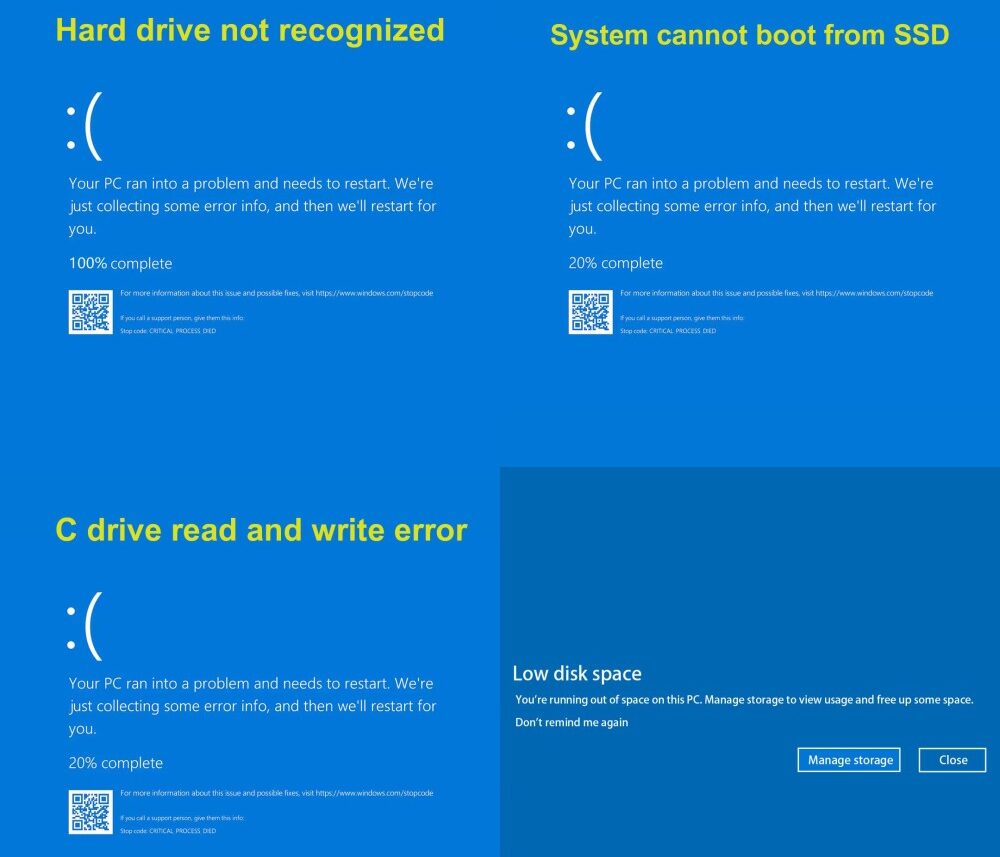
A computer that used to fly and now crawls isn’t a false impression — it’s one of the most common complaints tied to an SSD performance issue Windows OS problem among everyday users, gamers, and professionals alike. You paid extra for a solid-state drive because it promised lightning-fast boot times and instant file access, so a sudden slowdown deserves an explanation.
The truth is, SSDs don’t degrade the same way old hard drives do, but Windows itself can quietly create the conditions that slow them down. Here’s exactly why this happens, how to diagnose it, and what you can do to get your SSD running like new again.
Why Does an SSD Performance Issue Happen on Windows OS?
Solid-state drives are built differently from traditional hard disk drives. There are no spinning platters or moving parts, which is why they’re so fast in the first place. But that speed depends heavily on how well Windows manages the drive in the background.
Here are the most common reasons behind a noticeable SSD performance issue Windows OS users run into:
1. TRIM Not Working Properly
TRIM is a command that tells your SSD which data blocks are no longer in use so it can clean them up efficiently. When TRIM isn’t functioning correctly — often due to outdated drivers or incorrect BIOS settings — your SSD starts working harder than it should, and write speeds drop noticeably over time.
2. Outdated Firmware or Drivers
Manufacturers regularly release firmware updates that improve speed, stability, and compatibility with Windows. If you’re running outdated SSD firmware or storage controller drivers, you might be missing out on performance fixes that could solve your slowdown instantly.
3. Drive Nearly Full
Unlike HDDs, SSDs rely on free space to manage data efficiently through a process called wear leveling. When your SSD is filled close to capacity, performance can drop significantly because the drive has less room to organize and write new data efficiently.
4. Background Processes and Bloatware
Windows updates, antivirus scans, indexing services, and unnecessary startup programs can all hammer your SSD with constant read/write requests, making it feel slower than it actually is.
5. AHCI Mode Not Enabled
If your SSD is running in IDE mode instead of AHCI (Advanced Host Controller Interface), you’re not getting the full performance your drive is capable of. AHCI mode is essential for unlocking features like NCQ (Native Command Queuing) and TRIM support.
6. Incorrect Power Settings
Windows power plans sometimes throttle storage performance to save energy, especially on laptops. This can be a hidden cause of an SSD performance issue Windows OS users often overlook.
How to Identify If Your SSD Is the Real Problem
Before jumping into fixes, it helps to confirm the SSD itself is the bottleneck. Here’s how:
- Run a benchmark test using tools like CrystalDiskMark or ATTO Disk Benchmark to compare your real-world speeds against the manufacturer’s advertised specs.
- Check Task Manager under the Performance tab to see if disk usage is spiking to 100% during normal tasks.
- Use CrystalDiskInfo to check the health status and temperature of your drive — overheating can throttle performance too.
- Open Event Viewer to look for storage-related warnings or errors that might point to a deeper hardware issue.
If your benchmark numbers are dramatically lower than expected, it’s time to apply some fixes.
Proven Fixes for SSD Performance Issues on Windows OS
Fix 1: Enable and Verify TRIM
Open Command Prompt as administrator and type:
fsutil behavior query DisableDeleteNotify
If the result shows “1,” TRIM is disabled. Enable it by typing:
fsutil behavior set DisableDeleteNotify 0
Fix 2: Update Your SSD Firmware
Visit your SSD manufacturer’s website (Samsung Magician, Crucial Storage Executive, WD Dashboard, etc.) and check for the latest firmware version. These tools often include built-in performance optimization features as well.
Fix 3: Free Up Storage Space
Try to keep at least 10–20% of your SSD free at all times. Use Windows’ built-in Storage Sense or Disk Cleanup tool to clear temporary files, system caches, and unused applications.
Fix 4: Switch to AHCI Mode
Restart your PC, enter BIOS/UEFI settings, and locate the SATA configuration. Switch it from IDE to AHCI if it isn’t already set. Note: changing this after Windows installation may require additional registry adjustments to avoid boot issues, so back up your data first.
Fix 5: Disable Unnecessary Startup Programs
Open Task Manager, go to the Startup tab, and disable apps you don’t need running every time you boot up. Fewer background processes mean less unnecessary strain on your SSD.
Fix 6: Adjust Power Settings
Go to Control Panel > Power Options, select your active plan, and choose “Change advanced power settings.” Under “Hard disk,” make sure performance isn’t being throttled to save battery life.
Fix 7: Check for Windows Updates
Microsoft frequently rolls out updates that improve storage driver compatibility. Go to Settings > Windows Update and make sure your system is fully up to date.
Fix 8: Disable Excessive Indexing and Antivirus Scans
While indexing helps with search speed, it can also create unnecessary background writes. Consider limiting indexing to essential folders only, and schedule antivirus scans during idle hours rather than peak usage times.
When to Consider Replacing Your SSD
If you’ve tried all the fixes above and your SSD performance issue on Windows OS persists, it might be a sign of a deeper hardware problem. SSDs do have a limited lifespan based on read/write cycles (measured in TBW — Terabytes Written). Use your manufacturer’s diagnostic tool to check the drive’s health percentage. If it’s significantly degraded, it may simply be time for a replacement.
Final Thoughts
An SSD performance issue Windows OS problem doesn’t always mean your drive is failing — more often than not, it’s a configuration issue that can be fixed in minutes. From enabling TRIM and updating firmware to freeing up storage space and adjusting power settings, small tweaks can make a massive difference in how your system performs day to day.
Take the time to run a few diagnostics, apply the fixes that match your situation, and you’ll likely notice your SSD performing the way it was originally designed to — fast, responsive, and reliable.
Frequently Asked Questions
Why does my SSD feel slower after a few months of use? This is usually caused by a full drive, disabled TRIM, or background processes consuming disk resources rather than actual wear from normal use.
Does defragmenting help SSD performance? No — defragmenting actually reduces SSD lifespan and offers no performance benefit. Windows automatically optimizes SSDs differently using TRIM instead.
Can a virus cause SSD slowdowns? Yes, malware can run hidden background processes that consume significant read/write resources, mimicking the symptoms of a failing drive.
How long do SSDs typically last? Most consumer SSDs last 5–10 years under normal use, depending on usage patterns and total data written over their lifetime.