Why Can’t I Upgrade to Windows 11?
So you opened Windows Update, hit “check for updates,” and… nothing. No Windows 11 banner. No invitation to upgrade. Just your regular Windows 10 screen staring back at you like nothing’s changed.
If you’ve been searching “why can’t I upgrade to Windows 11,” you’re definitely not alone. Microsoft has made Windows 11 free for eligible PCs, but “eligible” is the keyword that’s tripping up millions of users. Let’s break down exactly why this is happening to you and what you can actually do about it.
Is Ubuntu Debian Based? Everything You Need to Know
The Short Answer
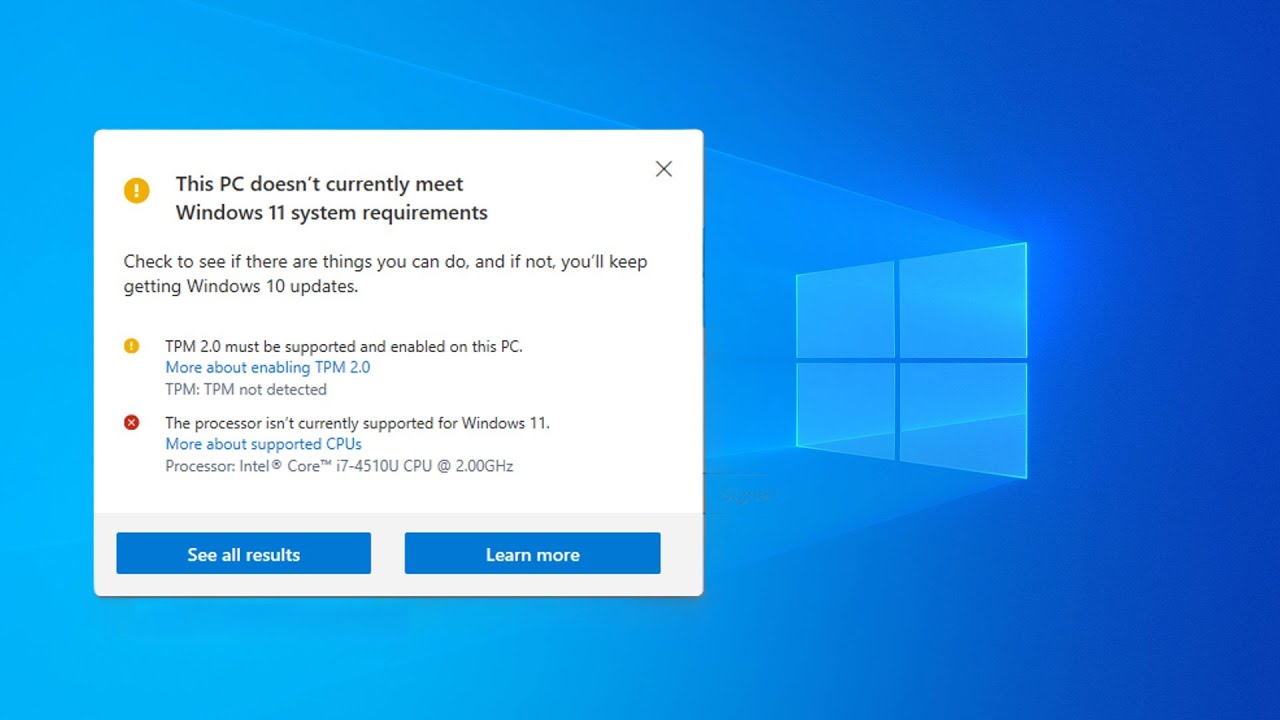
In most cases, you can’t upgrade to Windows 11 because your PC doesn’t meet one or more of Microsoft’s minimum hardware requirements — most commonly TPM 2.0, Secure Boot, or an unsupported processor. Other times, it’s a software issue: an outdated BIOS, a pending Windows Update, or Microsoft simply hasn’t rolled the upgrade out to your device yet.
Let’s go through each possibility one by one.
1. Your Processor (CPU) Isn’t on Microsoft’s Approved List
This is the single biggest reason people get blocked. Windows 11 only officially supports 8th-generation Intel Core processors and newer, along with AMD Ryzen 2000 series and newer. If you bought your laptop or desktop before around 2018, there’s a good chance your CPU simply isn’t on the approved list, even if it’s still fast and perfectly capable.
You can check your processor model by typing System Information into the Start menu search bar, then looking under “Processor.” Compare that model number against Microsoft’s official compatibility list to confirm.
2. TPM 2.0 Is Missing or Disabled
TPM stands for Trusted Platform Module, and it’s a small security chip that handles encryption and secure boot processes. Windows 11 requires TPM version 2.0 as a non-negotiable baseline requirement.
Here’s the twist: many PCs actually have a TPM 2.0 chip built into the motherboard, but it’s switched off by default in the BIOS/UEFI settings. This is one of the most common — and most fixable — reasons for the upgrade block.
To check if you have TPM 2.0:
- Press
Windows + R - Type
tpm.mscand hit Enter - Look for “Specification Version” — it should say 2.0
If it says it’s not found or shows an older version, you may need to enable it manually in your BIOS.
3. Secure Boot Isn’t Enabled
Secure Boot is a security feature that prevents unauthorized software from loading when your computer starts up. Windows 11 requires it to be turned on, and like TPM, it’s frequently disabled by default on older systems.
To check your Secure Boot status:
- Press
Windows + R - Type
msinfo32and press Enter - Look for “Secure Boot State” in the System Summary
If it says “Unsupported” or “Off,” this could be your blocker.
4. Your BIOS/UEFI Settings Need Updating
Sometimes the hardware itself is fully capable, but your motherboard’s BIOS or UEFI firmware is outdated and doesn’t have TPM or Secure Boot options properly exposed or enabled. Manufacturers regularly release firmware updates that add or fix these settings, so checking your motherboard or laptop manufacturer’s support page for the latest BIOS version is worth the five minutes it takes.
5. Insufficient RAM, Storage, or Disk Partition Type
Windows 11 has a few other baseline requirements that are easy to overlook:
- RAM: Minimum 4GB
- Storage: Minimum 64GB of available space
- Disk partition style: Your drive must use GPT (GUID Partition Table), not the older MBR format
- Graphics: DirectX 12 compatible GPU with WDDM 2.0 driver
If your storage drive is still using MBR partitioning, this alone can silently block the upgrade, even when everything else checks out.
6. Microsoft Hasn’t Offered You the Upgrade Yet
Even on fully compatible hardware, Microsoft rolls out Windows 11 in phases rather than to everyone at once. If your PC passes every hardware check but Windows Update still shows nothing, it might simply be a timing issue rather than a compatibility one. You can sometimes get around this by downloading the Windows 11 Installation Assistant directly from Microsoft’s official website instead of waiting for it to appear in Windows Update.
7. You’re Using an Unsupported or Outdated Windows 10 Build
If your Windows 10 installation is several versions behind, hasn’t been updated in a long time, or is running an edition that Microsoft doesn’t support for upgrades (such as certain Enterprise LTSC builds), the upgrade path may be blocked entirely. Running the latest Windows 10 updates first often resolves this.
How to Check Compatibility the Easy Way
Rather than digging through each setting manually, Microsoft provides a free tool called the PC Health Check app. It scans your system in seconds and tells you exactly which requirement(s) you’re failing, if any. This is the fastest way to get a definitive answer rather than guessing.
What If Your PC Genuinely Doesn’t Qualify?
If your hardware is too old to meet the official requirements, you still have a few realistic options:
- Stay on Windows 10: Microsoft has extended support timelines, and it remains a secure, functional choice for now.
- Enable TPM/Secure Boot in BIOS: Many “incompatible” machines just need these settings switched on.
- Bypass the requirements manually: It’s technically possible to install Windows 11 on unsupported hardware using registry edits or modified installation media, though Microsoft warns this may mean missing future updates and reduced stability. This route is best left to users comfortable with some risk.
- Upgrade your hardware: If your PC is several years old, this might be a natural point to consider a new machine that fully supports Windows 11 and future updates.
Final Thoughts
Not being able to upgrade to Windows 11 almost always comes down to one of a handful of specific, identifiable reasons — TPM, Secure Boot, CPU generation, or a setting buried in your BIOS. The good news is that most of these are easy to check and, in many cases, easy to fix without buying new hardware. Run the PC Health Check tool first; it’ll tell you in under a minute exactly where you stand, so you’re not left guessing.