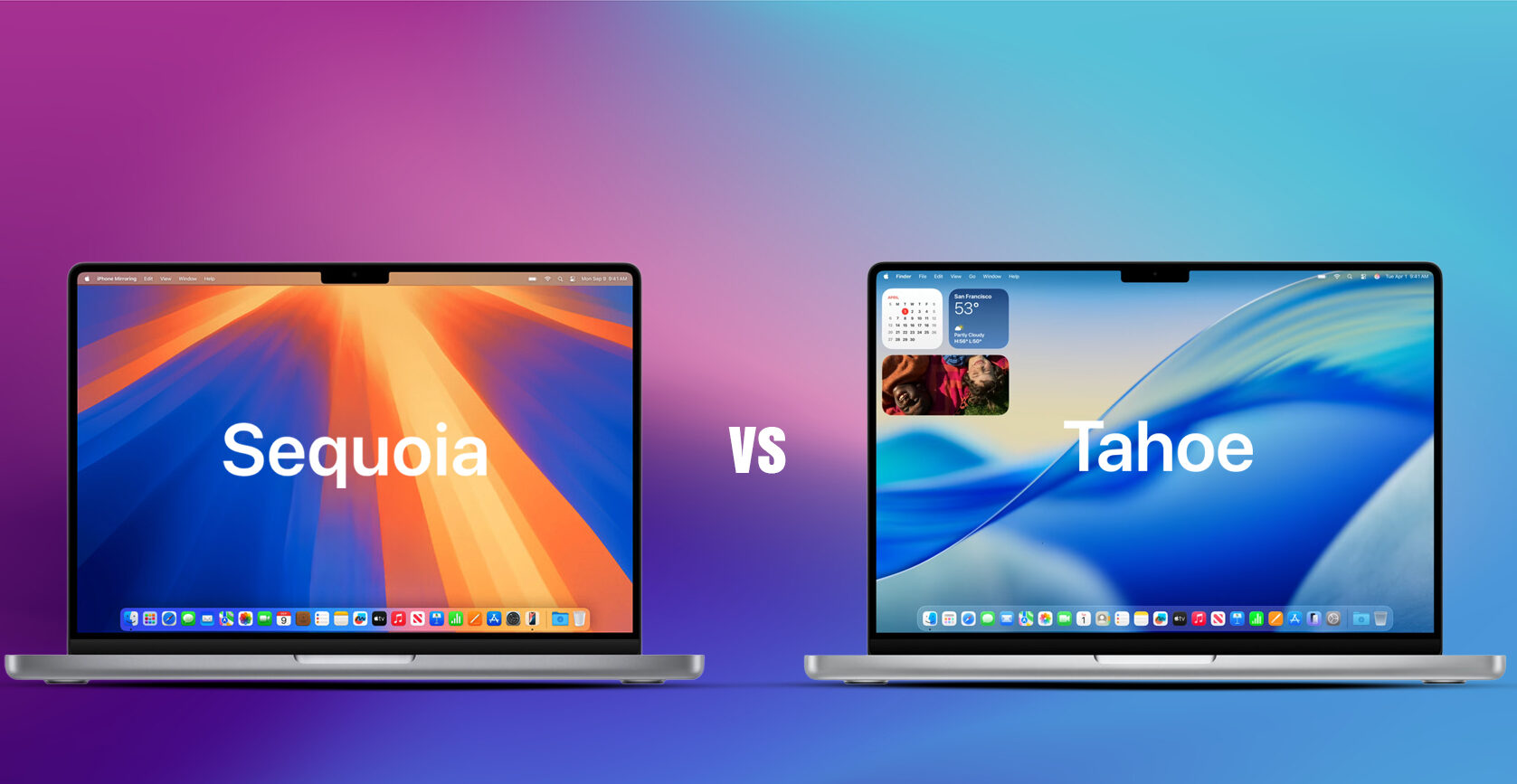
macOS Sequoia vs Tahoe: Which One Should You Actually Run in 2026?
That “Upgrade Now” notification has plenty of Mac users hesitating right now. Ever since Apple rolled out macOS Tahoe in September 2025, the macOS Sequoia vs Tahoe debate has been all over forums, Reddit threads, and IT helpdesks — some swearing Tahoe is the best-looking Mac update in years, others quietly downgrading back to Sequoia because their five-year-old MacBook started running hot.
So let’s settle this properly. No fluff, no marketing speak — just a real, practical comparison of what changes when you move from macOS Sequoia to macOS Tahoe, and which one makes sense for your setup.
Quick Overview: Sequoia vs Tahoe at a Glance
| Category | macOS Sequoia (macOS 15) | macOS Tahoe (macOS 26) |
|---|---|---|
| Released | September 2024 | September 2025 |
| Design language | Traditional desktop UI | Liquid Glass, iPad-influenced |
| Best for | Stability, older Macs | New features, Apple Silicon Macs |
| App organization | Launchpad | Apps utility (Launchpad removed) |
| Battery life | Generally longer | Slightly shorter on average |
| Hardware support | Wider Intel + Apple Silicon support | Leans heavily on Apple Silicon |
| Standout features | iPhone Mirroring, Passwords app, window tiling | Liquid Glass design, Phone app on Mac, Live Activities |
Now let’s break each of these down properly.
What Is macOS Sequoia, Exactly?
macOS Sequoia arrived as a fairly mature, refined update. It didn’t try to reinvent the Mac experience — it polished what was already there. The headline additions were iPhone Mirroring (control your iPhone right from your Mac screen), a dedicated Passwords app, smarter window tiling, and deeper Apple Intelligence integration.
If there’s one word to describe Sequoia, it’s dependable. It builds on the look and feel Mac users have known for years, runs comfortably on machines going back to around 2018, and rarely throws surprises at you. It’s the version a lot of professionals stuck with simply because it didn’t get in the way of their workflow.
What Is macOS Tahoe, Exactly?
Tahoe (yes, named after the lake, following Apple’s shift to year-based version numbers — hence “macOS 26”) is a much bigger swing. It introduces Liquid Glass, a translucent, layered design language that’s the biggest visual shake-up since macOS Big Sur back in 2020. Menus, the Control Center, widgets, and even window corners all got a facelift.
Beyond the visuals, Tahoe brings genuinely new functionality: you can now make and receive phone calls directly from your Mac, check voicemail without touching your iPhone, and see real-time progress from iPhone apps as Live Activities right in your Mac’s menu bar. Spotlight search also got noticeably smarter.
The catch? Tahoe is clearly built with newer Apple Silicon Macs in mind, and some of its flashier features ask more of your hardware than Sequoia ever did.
Design: Liquid Glass vs the Classic Desktop Feel
This is probably the most talked-about difference. Tahoe leans hard into a more iPad-like aesthetic — rounded window corners, translucent panels, a redesigned menu bar, and a Control Center that now supports third-party widgets. You can also color-code and add emojis to folders, which is a small but surprisingly popular touch.
Sequoia, by comparison, looks and feels like the traditional Mac desktop you’ve used for years. Nothing flashy, nothing distracting — just a clean, familiar layout.
Opinions on Tahoe’s redesign are genuinely split. Plenty of users love the modern, airy look. Just as many find all the glass and translucency a bit busy, especially on smaller screens where it can feel like there’s too much going on.
Performance and Battery Life
Here’s where things get nuanced. In real-world testing, Tahoe tends to render video and handle GPU-heavy tasks a bit faster than Sequoia — some benchmarks put it around 10% quicker for 4K footage, and animations feel noticeably smoother on Apple Silicon Macs.
But that extra visual horsepower comes at a cost: battery life. Sequoia generally lasts longer on a single charge, while Tahoe’s richer graphics and background processes tend to drain the battery a little faster, particularly during mixed everyday use. If you’re someone who works untethered from a charger for most of the day, that’s worth factoring in.
For everyday responsiveness — launching apps, switching windows, light multitasking — many users still find Sequoia feels snappier and more polished, since it’s had over a year of refinement. Tahoe, being newer, has occasionally felt heavier, especially on Intel Macs or machines with limited RAM, though Apple has been steadily smoothing out these rough edges with updates.
Features: What You Actually Gain (or Lose)
A few changes are worth flagging because they directly affect daily use:
- Launchpad is gone in Tahoe. It’s been replaced by an “Apps” utility, which organizes things differently. If you relied heavily on Launchpad’s grid layout, this is a real adjustment, not just a cosmetic one.
- Phone calls and voicemail on Mac are now native in Tahoe, which is genuinely useful if you’re constantly switching between devices.
- Live Activities in the menu bar let you track things like food delivery or workout progress without picking up your iPhone.
- Widgets in Tahoe are more interactive, while Sequoia’s widgets remain more like static information panels.
- Window management and gestures are actually more flexible in Sequoia, while Tahoe keeps things a bit more predictable and locked down.
- Spotlight got smarter in Tahoe, with improved search relevance and quicker results.
So it’s not simply “Tahoe has more, Sequoia has less.” Each version made trade-offs, and which one suits you depends on what you actually use day to day.
Compatibility: Will Your Mac Even Run It Well?
This is the part people overlook until it’s too late. Tahoe supports some Intel Macs from 2015 onward, but it’s clearly optimized for Apple Silicon. Older Intel machines may run into restrictions or simply feel sluggish with some of the newer features turned on.
Sequoia, on the other hand, runs comfortably on Macs from around 2018 onward, Intel or Apple Silicon, with fewer compromises. If you’ve got an older machine that’s still doing its job well, jumping to Tahoe might introduce more friction than benefit.
A good rule of thumb: newer release doesn’t automatically mean better fit for your hardware. Tahoe introduces bigger system-level changes, so in some cases an older Mac will actually run Sequoia more reliably than it runs Tahoe.
Stability: The Honest Take
Sequoia has had well over a year to mature, get bug fixes, and settle in. It’s widely considered the more stable, predictable choice right now — fewer beachball moments, fewer odd quirks.
Tahoe, being the newer release, launched with some rough patches: choppy animations on certain hardware, higher memory usage with heavier workflows, and the usual early-adopter bugs that come with any major redesign. Apple has been patching these steadily, and Tahoe has improved a lot since its initial release, but if rock-solid stability is your top priority, that’s a point in Sequoia’s favor.
So, Which One Should You Choose?
Here’s the honest breakdown:
Stick with macOS Sequoia if:
- You’re running an older Intel Mac or a machine from before 2020
- Stability and predictable performance matter more to you than new visuals
- You rely on Launchpad and don’t want to relearn app organization
- You want maximum battery life out of your MacBook
Upgrade to macOS Tahoe if:
- You’re on a recent Apple Silicon Mac (M-series)
- You want the latest features, longer-term support, and a fresher look
- Making calls and managing iPhone activities directly from your Mac sounds genuinely useful to you
- You don’t mind a short adjustment period while Apple irons out remaining bugs
There’s no universally “correct” answer in the macOS Sequoia vs Tahoe debate — it really comes down to your hardware and how much you value stability over new features. If your Mac handles Tahoe well and you like the new design, there’s a lot to like. If you’d rather not deal with any growing pains, Sequoia is still a perfectly capable, modern operating system.
Frequently Asked Questions
Is macOS Tahoe better than Sequoia? It depends on your priorities. Tahoe offers more features and a modern design, but Sequoia is currently more stable and battery-friendly on a wider range of hardware.
Can I run macOS Tahoe on an older Intel Mac? Some Intel Macs from 2015 onward are technically supported, but performance and feature availability can be limited. Sequoia tends to run more smoothly on older Intel hardware.
Does upgrading to Tahoe delete Launchpad? Yes. Tahoe replaces Launchpad with a new Apps utility, which organizes and displays apps differently.
Will macOS Tahoe drain my battery faster than Sequoia? In most reports, yes — slightly. The added visual effects and background processes in Tahoe tend to use a bit more power than Sequoia.
Should I wait before upgrading to Tahoe? If your Mac is older or you depend on rock-solid stability for work, it’s reasonable to stay on Sequoia a bit longer while Apple continues refining Tahoe. If you’re on newer Apple Silicon hardware, there’s little reason to wait.