How to See What Version of Windows I Have
Have you ever tried to install new software, download a driver, or troubleshoot a glitch, only to realize you have no idea which Windows operating system is actually running on your PC? You are not alone.
Knowing how to see what version of Windows I have is essential for compatibility, security updates, and tech support. Fortunately, Microsoft has made this process straightforward.
Whether you are a beginner or a seasoned pro, here are the most user-friendly ways to find your Windows version, edition (Home, Pro, Enterprise), and build number.
Method 1: The “Winver” Command (Fastest Trick)
This is the golden ticket. It works on Windows 11, Windows 10, Windows 8, and Windows 7.
- Press the Windows Key + R on your keyboard. This opens the “Run” dialog box.
- Type
winver(short for Windows Version) into the box. - Press Enter or click OK.
A small window will pop up showing you:
- Version: (e.g., Windows 10 Version 22H2)
- OS Build: (e.g., 19045.3693)
- Edition: (e.g., Windows 11 Pro)
Method 2: Check Via Settings (Visual Guide)
If you prefer using menus over commands, this method is for you.
For Windows 10 & 11:
- Click the Start button (Windows icon) and select the Settings gear icon.
- Click System.
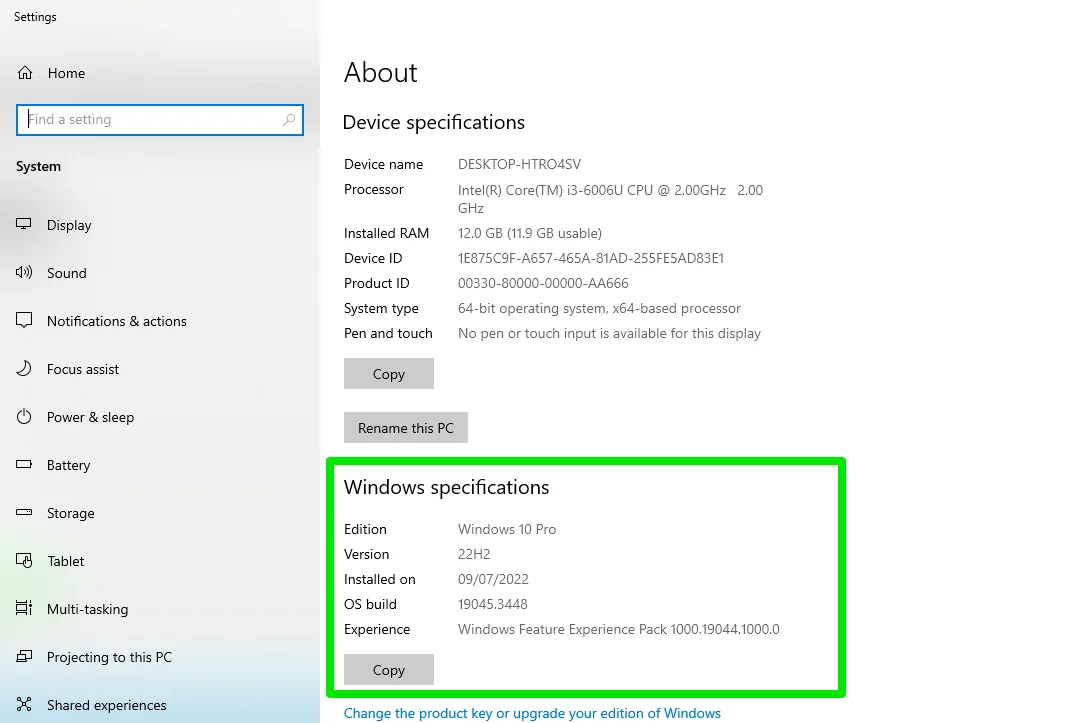
- Scroll down and click About (on Windows 10, it is at the bottom of the list).
Look under Windows specifications. You will see your Edition, Version, and Installed on date.
For Windows 8 or 7:
Right-click “Computer” on your desktop or Start menu, then select Properties. The version will be displayed right next to the Windows logo.
Method 3: Using the Control Panel (Classic Method)
For those who miss the old-school interface:
- Type Control Panel into the taskbar search box and open it.
- Click System and Security.
- Click System.
You will see your Windows edition and basic system type (32-bit or 64-bit) here.
Method 4: The Settings Search Bar (Easiest for Beginners)
If you don’t want to dig through menus:
- Click the Start button.
- Just start typing “About your PC” .
- Click the result that appears.
This is the most beginner-friendly way to learn how to see what version of Windows I have without memorizing any steps.
Method 5: Check Using the Command Prompt (For Tech Enthusiasts)
Want more technical detail (like the original install date)?
- Type cmd into the search bar.
- Right-click Command Prompt and select “Run as administrator.”
- Type
systeminfo | findstr /B /C:"OS Name" /C:"OS Version"and press Enter.
The terminal will spit out your exact OS name and version number.
Why Does This Matter?
Knowing your Windows version helps you:
- Download the correct drivers for printers or graphics cards.
- Verify you are getting security updates (e.g., being on Version 22H2 vs. an outdated 1909).
- Check game compatibility (DirectX 12 requires Windows 10 or 11).
- Explain your issue to IT support quickly.
A Quick Tip on “Build Numbers”
When searching how to see what version of windows i have, you might see a long number like “22621.1.” That is the Build number. Think of the version (Windows 11) as the “movie title” and the build number as the “scene number.” Tech support often asks for the build number to see if you have the latest patches installed.
Summary
You don’t need to be a computer genius to find your OS details. Use Winver for speed, Settings > System > About for visuals, or simply search for “About your PC” on the Start menu.
Now that you know exactly how to see what version of Windows I have, you can confidently install that new software or call tech support with the right information in hand.