Kali Linux OS Requirements: The Complete 2026 Guide
If you’re getting ready to install Kali Linux, the first question you probably have isn’t “which tools should I learn first?” — it’s “will my computer even handle this?” Good news: Kali Linux is far lighter than most people expect. You don’t need a gaming rig or a server-grade machine to get it running. But there’s a big difference between the bare minimum Kali will boot on and the setup you actually want if you plan to use it seriously for penetration testing, digital forensics, or cybersecurity learning.
In this guide, we’ll break down the real Kali Linux OS requirements — minimum, recommended, and “ideal” — plus how those numbers shift depending on whether you’re installing it on bare metal, running it in a virtual machine, or setting it up for something specialized like wireless auditing or password cracking.
What Is Kali Linux, Quickly
Kali Linux is a Debian-based distribution built and maintained by Offensive Security, the same organization behind the OSCP certification. It comes preloaded with hundreds of tools for penetration testing, vulnerability scanning, digital forensics, and reverse engineering — things like Nmap, Wireshark, Metasploit, Aircrack-ng, and Burp Suite. It’s aimed at ethical hackers, security researchers, and IT professionals who need a purpose-built toolkit rather than a general-purpose desktop OS.
Because it’s built on Debian, Kali inherits Debian’s efficiency. It’s not a bloated OS by design — but the tools you run on top of it can be resource-hungry, which is where hardware requirements start to matter.
Minimum System Requirements
<cite index=”1-1″>On the low end, Kali Linux can run as a basic SSH server with no desktop environment at all, using as little as 128 MB of RAM (512 MB recommended) and 2 GB of disk space.</cite> That’s the true floor — a headless setup with no graphical interface, useful mainly for lightweight remote access or specialized builds.
<cite index=”1-1″>If you opt for the default Xfce4 desktop along with the standard Kali metapackage, you should aim for at least 2 GB of RAM</cite> and considerably more storage than the bare SSH setup.
Here’s the realistic minimum for a usable desktop install:
- Processor: 64-bit (amd64/x86_64) dual-core CPU
- RAM: 2 GB minimum
- Storage: 20 GB of free disk space for a full installation
- Boot support: UEFI or legacy BIOS
- Graphics: Basic GPU capable of rendering a desktop environment
Worth noting: <cite index=”2-1″>since Kali Linux 2024.4, 32-bit images are no longer officially supported</cite>, so you’ll need genuine 64-bit hardware — most machines made in the last decade-plus qualify.
Recommended System Requirements
Minimum specs will let Kali boot, but “boot” and “usable” are different things. If you’re actually going to run security tools, browse with multiple tabs open, and multitask between a terminal, Burp Suite, and a text editor, aim higher:
- Processor: 64-bit quad-core (Intel i5/Ryzen 5 or better)
- RAM: 4–8 GB
- Storage: 40+ GB, ideally on an SSD rather than a spinning HDD
- Display: 1920×1080 resolution or higher — many Kali tools use multi panel interfaces that get cramped on smaller screens
- Network: A stable internet connection for updates and package installs
An SSD in particular makes a noticeable difference. Kali does a lot of reading and writing during scans, package updates, and tool installations, and a mechanical hard drive will bottleneck that work.
Ideal Setup for Heavy Workloads
If you’re doing password cracking, GPU-accelerated hash cracking, or large-scale wireless testing, the requirements climb again:
- RAM: 16 GB or more
- CPU: 6+ cores for parallel processing during scans or brute-force tasks
- GPU: A dedicated NVIDIA (CUDA) or AMD (OpenCL) card with 4–8 GB+ VRAM, especially useful for tools like Hashcat
- Storage: 100 GB+ SSD, especially if you’re storing packet captures, forensic images, or large wordlists
- Wireless adapter: An external USB Wi-Fi adapter with monitor mode and packet injection support — most built-in laptop Wi-Fi cards don’t support this, so it’s a common upgrade for anyone doing wireless penetration testing
Running Kali Linux in a Virtual Machine
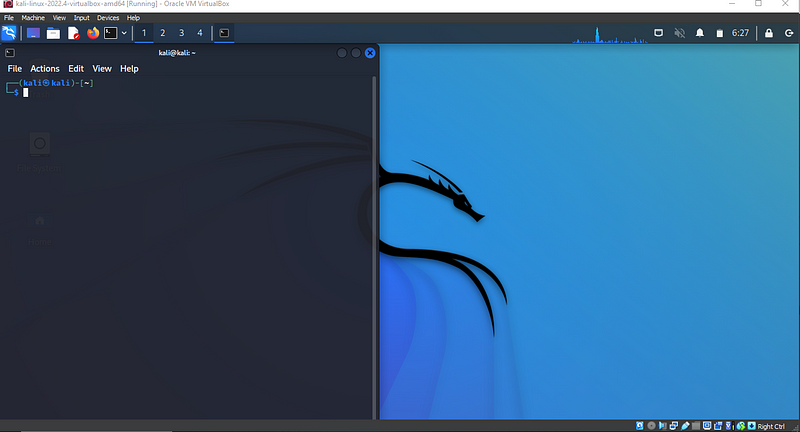
A huge number of Kali users run it inside VirtualBox or VMware rather than installing it directly on hardware — and for good reason. It’s safer, easier to snapshot and roll back, and lets you keep your main OS untouched.
If you’re going the VM route:
- Allocate at least 2 CPU cores and 4 GB RAM to the virtual machine for basic use; 4+ cores and 8 GB RAM for smoother multitasking
- Give the VM 40+ GB of virtual disk space
- Make sure your host machine has enough headroom — ideally 16 GB total RAM and a multi-core processor so the VM doesn’t choke your host system
The trade-off with VMs is hardware access. Some USB Wi-Fi adapters won’t pass through cleanly for wireless testing, and you’ll take a performance hit compared to a bare-metal install. For most learning, scripting, and general tool use, though, a VM is more than capable.
Bare Metal vs. Virtual Machine: Which Should You Choose?
Bare metal (installed directly on hardware) Best if you need full hardware access — particularly for Wi-Fi adapters in monitor mode, GPU-accelerated cracking, or maximum performance. The downside is setup complexity (dual-booting) and less flexibility to “reset” your environment.
Virtual machine Best for beginners, lab environments, or anyone who wants to keep Kali isolated from their primary OS. Easy to snapshot before risky tests and restore if something breaks. The trade-off is some performance overhead and occasional hardware compatibility limits.
If you’re new to Kali, starting in a VM is almost always the safer, easier choice.
How to Check If Your Computer Meets the Requirements
Before installing, it’s worth confirming your current hardware specs.
On Windows: Open Task Manager (Ctrl+Shift+Esc) and check the Performance tab for CPU and RAM, then check File Explorer for free disk space.
On macOS: Go to the Apple menu → About This Mac, and check the Overview, Storage, and Displays tabs.
an existing Linux system:
lscpu          # CPU details
free -h        # RAM
df -h          # Storage
lspci | grep -i vga   # GPU
Quick Reference Table
| Use Case | RAM | Storage | CPU |
|---|---|---|---|
| Headless / SSH-only | 512 MB | 2 GB | Any 64-bit |
| Basic desktop (Xfce) | 2 GB | 20 GB | 64-bit dual-core |
| Recommended daily use | 4–8 GB | 40 GB (SSD) | 64-bit quad-core |
| Heavy workloads (cracking, forensics) | 16 GB+ | 100 GB+ (SSD) | 6+ cores, dedicated GPU |
| Virtual machine | 4–8 GB allocated | 40 GB+ allocated | 2–4 cores allocated |
Final Thoughts
Kali Linux is intentionally lightweight at its core — you genuinely don’t need premium hardware just to get it installed and running. But the tools inside Kali are where the real resource demands show up. If you’re just learning the ropes, a modest laptop with 4 GB of RAM and an SSD will get you through most tutorials and coursework comfortably. If you’re moving into serious penetration testing, wireless auditing, or password cracking, investing in more RAM, a proper multi-core CPU, and a capable GPU will save you a lot of frustration down the line.