If you’ve ever opened a terminal and thought, “Wait, which version of Linux am I even running?” — you’re not alone. Whether you’re troubleshooting a bug, installing software that needs a specific version, or just satisfying your curiosity, knowing how to check Linux OS version command options is one of the most useful skills any Linux user can have.
The good news? You don’t need to be a command-line wizard to figure this out. Linux gives you several simple, built-in commands that reveal exactly what distribution, version, and kernel you’re running — often in just a few seconds.
In this guide, we’ll walk through every reliable method to check your Linux OS version, explain when to use each one, and clear up some common confusion along the way.
Why Knowing Your Linux Version Actually Matters
Before jumping into the commands, let’s talk about why this matters in the first place.
Linux isn’t a single operating system — it’s a family of distributions (Ubuntu, CentOS, Debian, Fedora, Arch, and dozens more), each with its own versioning system. Knowing your exact OS version helps you:
- Install software that’s compatible with your system
- Troubleshoot errors that are version-specific
- Apply the correct security patches and updates
- Follow tutorials that assume a particular distro or version
- Confirm whether your system needs an upgrade
Now let’s get into the actual commands.
1. Using the lsb_release Command
The lsb_release command is one of the most straightforward ways to check your Linux OS version. It works across most major distributions and gives you a clean, readable output.
lsb_release -a
This will show you:
- Distributor ID (e.g., Ubuntu, Debian)
- Description (full name and version)
- Release number
- Codename (like “focal” or “bullseye”)
If you only want the version number without the extra details, try:
lsb_release -d
Note: On some minimal installations, lsb_release might not be installed by default. If that happens, you can install it using your package manager, or simply use one of the alternative methods below.
2. Checking the /etc/os-release File
This is probably the most universal and reliable method across almost every modern Linux distribution. The /etc/os-release file contains detailed information about your operating system in an easy-to-read format.
Run this command:
cat /etc/os-release
You’ll get output similar to this:
NAME="Ubuntu"
VERSION="22.04.3 LTS (Jammy Jellyfish)"
ID=ubuntu
VERSION_ID="22.04"
This method works on Ubuntu, Debian, CentOS, Fedora, RHEL, Arch Linux, and most other modern distros — making it a go-to solution when you’re not sure which distribution you’re dealing with.
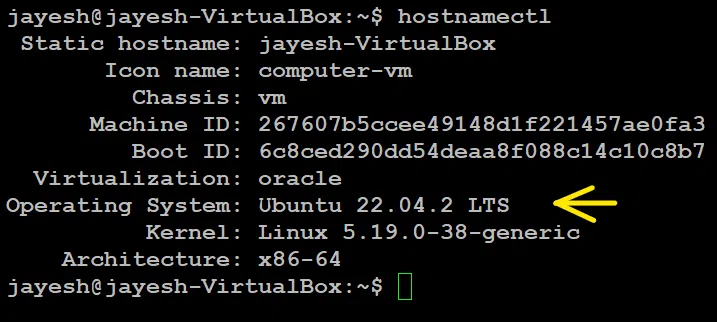
3. Using the hostnamectl Command
If you’re running a system with systemd (which most modern Linux distributions use), the hostnamectl command is a quick way to check OS details along with some extra system information.
hostnamectl
This command displays:
- Operating system name and version
- Kernel version
- Architecture (32-bit or 64-bit)
- Virtualization details (if applicable)
It’s a great all-in-one command if you want both OS and hardware-related information in a single glance.
4. Checking Kernel Version with uname
While the previous methods focus on the distribution version, sometimes you specifically need the kernel version. That’s where the uname command comes in handy.
uname -r
This returns just the kernel version, something like:
5.15.0-91-generic
If you want more detailed system information, including the kernel name, hostname, and architecture, use:
uname -a
Keep in mind: the kernel version is different from the distribution version. Ubuntu 22.04, for example, might run on a completely different kernel version depending on updates and configurations.
5. Distribution-Specific Commands
Some Linux distributions have their own dedicated commands for checking version details. Here are a few examples:
For Red Hat-based systems (CentOS, RHEL, Fedora):
cat /etc/redhat-release
For Debian-based systems:
cat /etc/debian_version
For Arch Linux:
Arch is a rolling release, so it doesn’t have traditional version numbers, but you can check the current build date with:
cat /etc/os-release
These distro-specific files are especially useful when lsb_release isn’t installed or when you’re working on an older or more minimal system.
6. Using the GUI (If You Prefer Avoiding the Terminal)
Not everyone wants to type commands, and that’s perfectly fine. Most desktop Linux distributions let you check the OS version through system settings.
For example, on Ubuntu:
- Open Settings
- Click About
- You’ll see the OS name, version, and other system details
While this method is more visual, it’s generally limited to desktop environments and won’t help if you’re managing a remote server through SSH — which is where terminal commands really shine.
Quick Comparison: Which Command Should You Use?
| Goal | Best Command |
|---|---|
| Full OS details | cat /etc/os-release |
| Quick summary | lsb_release -a |
| Systemd-based info | hostnamectl |
| Kernel version only | uname -r |
| Red Hat-based systems | cat /etc/redhat-release |
| Debian-based systems | cat /etc/debian_version |
If you’re ever unsure which command will work, starting with cat /etc/os-release is usually your safest bet since it’s supported almost everywhere.
Final Thoughts
Checking your Linux OS version doesn’t have to be complicated. With commands like lsb_release, cat /etc/os-release, hostnamectl, and uname, you have multiple reliable ways to get the exact information you need — whether you’re debugging an issue, installing new software, or simply exploring your system.
Once you get comfortable with these commands, identifying your Linux distribution and version becomes second nature. And the next time someone asks, “What Linux version are you running?” — you’ll have the answer in seconds, straight from the terminal.