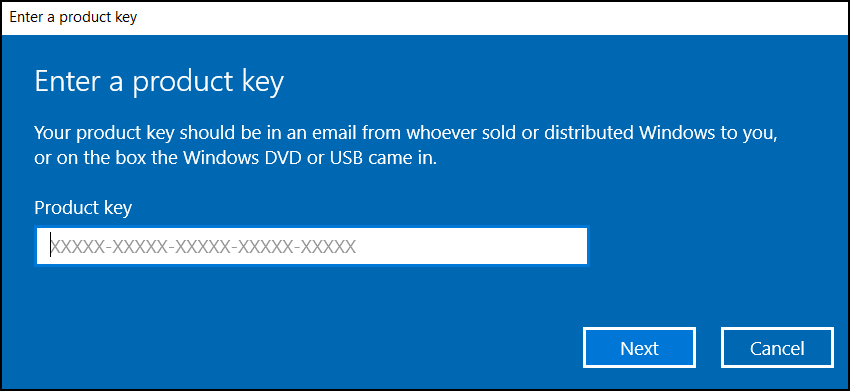
If you’ve ever sat in front of a fresh Windows installation screen, staring at a blinking cursor asking you to “Enter your product key,” you already know how much confusion that one little box can cause. A Windows OS product key is more than just a string of random letters and numbers — it’s the digital proof that your copy of Windows is genuine, licensed, and entitled to updates, support, and full functionality.
In this guide, we’ll break down everything you need to know about Windows OS product keys: what they are, where to find them, how to activate Windows with one, common problems people run into, and how to keep your license safe from scams.
What Is a Windows OS Product Key?
A Windows OS product key is a unique 25-character code, usually formatted in five groups of five characters (like XXXXX-XXXXX-XXXXX-XXXXX-XXXXX). Microsoft uses this code to verify that your installation of Windows is legitimate and not a pirated or unauthorized copy.
Think of it like a digital receipt. When you buy a new laptop, purchase Windows directly from Microsoft, or upgrade from an older version, that key links your device to a valid software license. Without it — or without a linked digital license tied to your Microsoft account — your version of Windows will run in a limited, unactivated state, often nagging you with a “Activate Windows” watermark in the corner of your screen.
Why Does the Product Key Matter So Much?
A lot of people assume Windows will work fine even without activation, and technically, it often does — for a while. But here’s why activation actually matters:
- Full personalization access: Unactivated Windows blocks you from changing your desktop background, themes, and certain settings.
- Security and updates: Activated systems are verified to receive the latest patches without interruption.
- Genuine software validation: Some apps and services check your Windows activation status before allowing certain features.
- Peace of mind: You’re not constantly reminded with watermarks or pop-ups asking you to activate.
- Resale and support value: If you ever need Microsoft support or want to resell your device, having a properly licensed OS adds real value.
Where to Find Your Windows Product Key
Depending on how you got your copy of Windows, your product key could be hiding in a few different places.
1. On a Physical Sticker or Box
Older desktops and laptops, especially OEM machines, often came with a Certificate of Authenticity (COA) sticker attached to the device or printed on the original packaging.
2. In Your Email Confirmation
If you purchased Windows digitally — through the Microsoft Store or a retailer’s website — your key is typically emailed to you right after purchase.
3. Embedded in the Device Firmware (OEM Key)
Many modern PCs come with the product key embedded directly into the motherboard’s firmware (BIOS/UEFI). In this case, Windows will often activate automatically once connected to the internet — no manual key entry needed.
4. Linked to Your Microsoft Account (Digital License)
If you’ve previously activated Windows on the device and signed in with a Microsoft account, your digital license is stored online. Reinstalling Windows and signing in with that same account can automatically restore activation — no physical key required.
5. Using Command Prompt (For Already-Activated Systems)
If Windows is already activated on your machine and you simply want to retrieve the key for backup purposes, you can run a simple command in Command Prompt to display the product key tied to your installation.
How to Activate Windows Using Your Product Key
Activating Windows with a valid product key is usually a quick process:
- Go to Settings > System > Activation.
- Click Change product key (if prompted).
- Enter your 25-character Windows OS product key.
- Click Next, and Windows will verify the key with Microsoft’s servers.
- Once verified, you’ll see a confirmation that Windows is activated.
If you’re doing a clean installation, you’ll typically be asked to enter the key during the setup process itself, before you even reach the desktop.
Common Problems With Windows Product Keys (and How to Fix Them)
“This key didn’t work”
This usually happens when:
- The key has already been used on the maximum number of allowed devices.
- It’s tied to a different edition of Windows (Home vs. Pro, for example).
- There’s a typo — double-check for confusing characters like 0 (zero) vs. O (letter).
“Windows is not activated“
Try the built-in Activation Troubleshooter under Settings > Activation. It can often detect and fix hardware changes or licensing mismatches automatically.
Key Stopped Working After a Hardware Upgrade
Major hardware changes (like replacing a motherboard) can sometimes break the link between your digital license and your device. Signing back into your Microsoft account usually resolves this.
How to Avoid Fake or Scam Product Keys
This is where a lot of people get burned. Because product keys are valuable, the internet is full of third-party sellers offering “cheap Windows keys” at suspiciously low prices. While some resold keys are legitimate (especially through Microsoft’s official retail partners), many are:
- Stolen or fraudulently obtained
- Volume license keys not meant for individual resale
- Already used on multiple other devices
- Completely fake and non-functional
Tips to stay safe:
- Buy directly from Microsoft’s official store or verified retailers (like the manufacturer of your PC).
- Be skeptical of deals that seem too good to be true.
- Avoid third-party marketplaces with no buyer protection or unclear seller identity.
- Keep your receipt and key confirmation email in a safe place after purchase.
Windows 10 vs. Windows 11 Product Keys — Are They the Same?
In many cases, yes. If you have a valid digital license or product key for Windows 10, it will often activate Windows 11 as well, since Microsoft allowed free upgrades between the two for eligible devices. However, the specific edition (Home, Pro, Education, etc.) still needs to match what you’re trying to install.
Final Thoughts
A Windows OS product key might just look like a jumble of letters and numbers, but it plays a huge role in making sure your operating system is secure, fully functional, and properly licensed. Whether you’re setting up a brand-new PC, reinstalling Windows after a crash, or just trying to track down a lost key, knowing where to look and how activation works can save you a lot of frustration.
The safest approach is always the simplest one: buy from official sources, keep your purchase records handy, and let Windows do the verification work for you. A properly activated system isn’t just about removing a watermark — it’s about making sure your computer runs the way it’s supposed to, safely and reliably.
Frequently Asked Questions
Q: Can I use Windows without a product key? Yes, but with limitations. You won’t get full personalization options, and you’ll see a persistent activation reminder on your screen.
Q: Is it legal to buy a used or resold Windows product key? It depends on the type of license. Retail keys can typically be transferred, while OEM and volume license keys often cannot be legally resold to individuals.
Q: How many times can I use one product key? This depends on the license type. Retail keys are generally limited to a set number of activations, while OEM keys are typically tied to a single device.
Q: What happens if I lose my product key? If your copy was previously activated and linked to your Microsoft account, you can usually reactivate by signing in — no key needed. Otherwise, you may need to contact the retailer or Microsoft for recovery options.