How to Check for Malware on Mac: Guide for Mac Users
Introduction
Many Mac users believe that Apple computers are completely immune to viruses and malware. While macOS is known for its strong security features, no operating system is entirely safe from cyber threats. As Macs continue to grow in popularity, cybercriminals increasingly target them with malware, adware, spyware, ransomware, and phishing attacks. Understanding how to check for malware on Mac is essential for maintaining your device’s security, protecting personal information, and ensuring optimal system performance.
Malware can enter your Mac through infected downloads, malicious websites, fake software updates, email attachments, browser extensions, and compromised applications. Once installed, malware may steal sensitive information, slow down your computer, display unwanted advertisements, or even lock your files until a ransom is paid. Fortunately, there are several ways to identify and remove malware before it causes serious damage.
This guide explains everything you need to know about how to check for malware on Mac, including common signs of infection, built-in security tools, manual inspection methods, and malware removal techniques.
Understanding Malware on Mac
Malware is a broad term that refers to malicious software designed to damage, disrupt, or gain unauthorized access to a computer system. While Macs have built-in security protections such as Gatekeeper, XProtect, and System Integrity Protection, sophisticated malware can sometimes bypass these defenses.
Common types of malware affecting Mac computers include adware, spyware, trojans, ransomware, browser hijackers, cryptocurrency miners, and potentially unwanted programs (PUPs). Some malware operates silently in the background, making it difficult to detect until noticeable symptoms appear.
Cybercriminals often disguise malware as legitimate software, software updates, productivity tools, media players, or security applications. This makes regular malware checks an important part of Mac maintenance.
Signs Your Mac May Be Infected with Malware
Before learning how to check for malware on Mac, it is important to recognize potential warning signs. Malware infections often create noticeable changes in system behavior.
One common symptom is a significant decrease in system performance. If your Mac suddenly becomes slow, applications take longer to launch, or the system frequently freezes, malware may be consuming system resources.
Unexpected pop-up advertisements can also indicate malware. If ads appear even when you’re not browsing the internet or visiting unfamiliar websites, adware may be installed on your device.
Another warning sign is browser redirection. If your web browser frequently redirects you to unfamiliar websites or changes your default search engine without permission, a browser hijacker may be responsible.
You may also notice unfamiliar applications appearing in your Applications folder. Malware often installs additional software without user consent.
Excessive CPU usage, rapid battery drain, increased network activity, and unusual system behavior are additional indicators that malware could be present.
Use Apple’s Built-In Security Features
Apple includes several built-in security mechanisms that help detect and prevent malware infections.
XProtect
XProtect is Apple’s built-in malware detection system. It automatically scans downloaded files and blocks known malware signatures. XProtect updates automatically through macOS security updates, helping protect against newly discovered threats.
Although XProtect works silently in the background, keeping your Mac updated ensures it remains effective.
Gatekeeper
Gatekeeper verifies that downloaded applications come from trusted developers. When you attempt to install software from an unknown source, Gatekeeper warns you about potential risks.
To verify Gatekeeper settings:
Open System Settings, select Privacy & Security, and review the Security section. Ensure your Mac is configured to allow applications only from trusted sources.
Malware Removal Tool (MRT)
Apple also includes a hidden Malware Removal Tool that automatically removes known malicious software. MRT operates behind the scenes and receives updates through macOS security updates.
Keeping macOS updated ensures MRT can effectively detect current malware threats.
Check Activity Monitor for Suspicious Processes
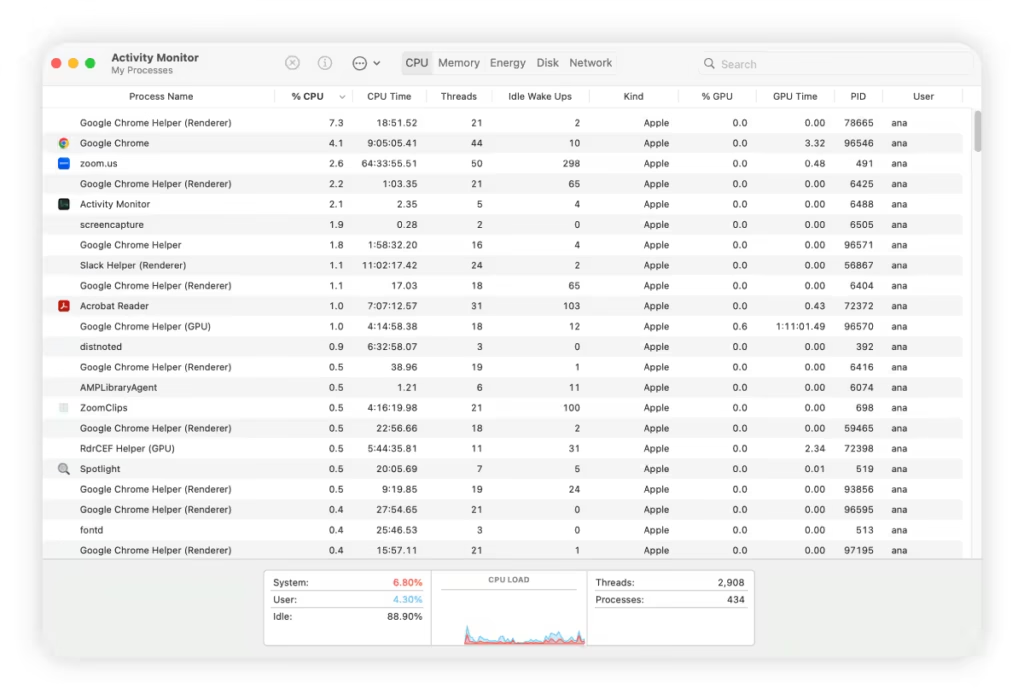
Activity Monitor is one of the most useful built-in tools for identifying suspicious activity on your Mac.
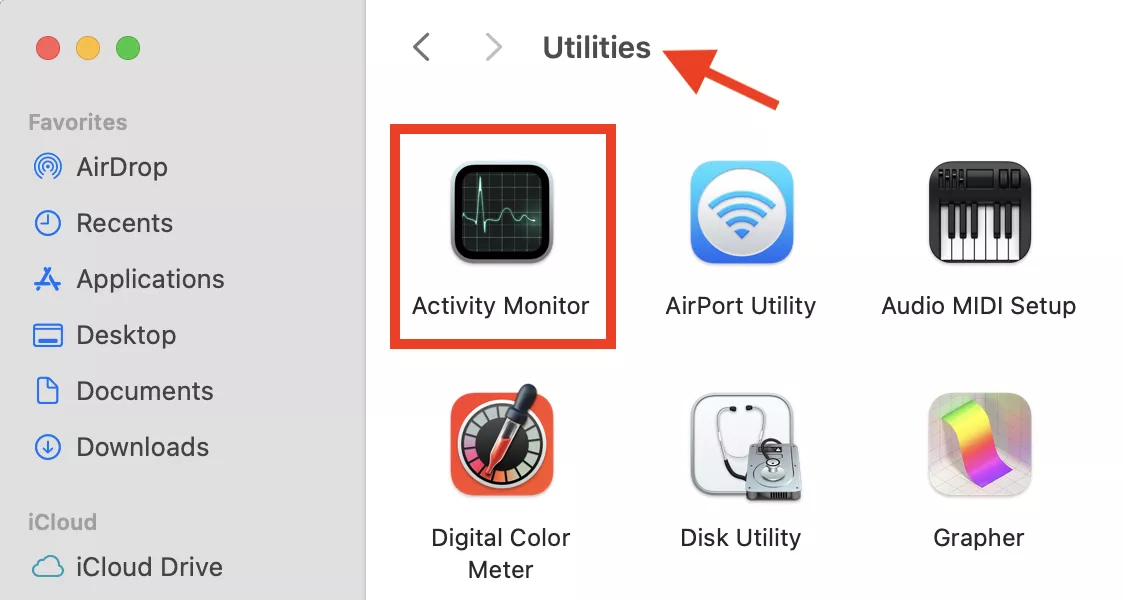
Open Activity Monitor by navigating to Applications, Utilities, and then Activity Monitor.
Review the CPU tab and look for processes consuming unusually high amounts of processing power. Malware often uses significant CPU resources, causing system slowdowns and overheating.
Pay attention to unfamiliar process names. If a process appears suspicious, search its name online to determine whether it is a legitimate macOS component or potentially malicious software.
Also check the Memory and Energy tabs. Malware frequently consumes excessive memory and battery power.
If you identify a suspicious process, select it and click the Stop button to terminate it temporarily while investigating further.
Review Login Items
Malware often configures itself to launch automatically when your Mac starts.
To check startup programs:
Open System Settings and select General, then Login Items.
Review all applications configured to launch at startup. If you see unfamiliar programs, research them before removing them.
Malicious software frequently uses startup entries to maintain persistence even after a system reboot.
Removing suspicious login items can help prevent malware from automatically restarting.
Inspect Installed Applications
One of the simplest ways to check for malware on Mac is by reviewing installed applications.
Open the Applications folder and carefully examine all installed software.
Look for applications you do not remember installing, recently added programs, or software with suspicious names.
Malware often disguises itself as system optimization tools, antivirus programs, media converters, or browser utilities.
If you find unfamiliar applications, research them online. If confirmed malicious or unnecessary, move them to the Trash and empty it.
However, some malware leaves behind hidden files even after the application is deleted, requiring additional cleanup.
Check Browser Extensions
Web browsers are common targets for malware and adware.
Open your preferred browser and review installed extensions.
In Safari, navigate to Settings and Extensions.
In Google Chrome, open Extensions through the browser menu.
In Mozilla Firefox, review Add-ons and Themes.
Remove any extension you do not recognize or no longer use.
Browser hijackers often install malicious extensions that inject advertisements, collect browsing data, or redirect searches.
After removing suspicious extensions, reset your browser settings if unusual behavior continues.
Examine Network Activity
Malware frequently communicates with external servers to transmit stolen data or receive commands.
Use Activity Monitor’s Network tab to monitor network usage.
Look for applications generating unusually high internet traffic without explanation.
If you notice unfamiliar processes sending or receiving significant amounts of data, investigate further.
You can also use Terminal commands such as:
netstat
or
lsof -i
to review active network connections.
Unexpected network activity may indicate spyware, data theft, or botnet-related malware.
Scan Your Mac with Trusted Antivirus Software

While macOS includes strong security protections, third-party antivirus tools can provide additional malware detection capabilities.
Popular antivirus solutions for Mac include:
- Malwarebytes
- Bitdefender Antivirus for Mac
- Norton 360
- Intego Mac Internet Security
- Avast Security
- ESET Cyber Security
Install a reputable security solution and perform a full system scan.
A comprehensive scan can detect malware hidden in system files, user folders, browser components, and startup items.
Many modern antivirus tools also provide real-time protection against future infections.
Check for Unusual Configuration Profiles
Some malware installs configuration profiles to gain additional control over your Mac.
To inspect profiles:
Open System Settings and navigate to Privacy & Security.
Look for Profiles if the option appears.
Review installed profiles carefully.
Legitimate profiles are commonly used by schools, businesses, or device management systems. However, unfamiliar profiles may indicate malware.
Remove suspicious profiles only after verifying they are not required for legitimate purposes.
Use Safe Mode to Investigate Malware
Safe Mode starts macOS with only essential system components.
To enter Safe Mode:
For Apple Silicon Macs, shut down your Mac, hold the power button, select your startup disk, and choose Safe Mode.
For Intel-based Macs, restart and hold the Shift key during startup.
Safe Mode disables many startup items and third-party extensions.
If performance issues disappear in Safe Mode, a startup program or third-party application may be responsible.
This can help isolate malware-related problems.
Check Terminal for Suspicious Launch Agents
Advanced users can inspect launch agents and launch daemons using Terminal.
Malware often creates files within directories such as:
~/Library/LaunchAgents
/Library/LaunchAgents
/Library/LaunchDaemons
Review these folders carefully.
Look for recently created files with unusual names.
Launch agents allow programs to start automatically during login or system startup.
Removing malicious launch agents can prevent malware from relaunching.
Always back up important data before deleting system files.
Update macOS Regularly
One of the most effective ways to prevent malware infections is keeping macOS updated.
Apple regularly releases security patches that fix vulnerabilities exploited by attackers.
To check for updates:
Open System Settings and select General, then Software Update.
Install all available updates promptly.
Security updates often include enhancements to XProtect, MRT, and other protective technologies.
Outdated systems are significantly more vulnerable to malware attacks.
Remove Malware from Your Mac
If malware is detected, immediate removal is important.
Start by disconnecting from the internet to prevent further communication with malicious servers.
Terminate suspicious processes using Activity Monitor.
Remove suspicious applications and browser extensions.
Delete malicious login items and launch agents.
Run a full scan using trusted antivirus software.
Restart your Mac and perform another scan to confirm successful removal.
If malware persists, consider restoring from a clean Time Machine backup or reinstalling macOS.
In severe cases involving ransomware or advanced threats, professional technical assistance may be necessary.
Prevent Future Malware Infections
Prevention is always better than removal.
Download software only from trusted sources such as the official developer website or the Mac App Store.
Avoid pirated software, cracked applications, and suspicious downloads.
Be cautious when opening email attachments or clicking links from unknown senders.
Use strong passwords and enable multi-factor authentication whenever possible.
Keep browsers, applications, and macOS updated regularly.
Install reputable antivirus software and schedule routine malware scans.
Regular backups ensure you can recover important files if an infection occurs.
Developing safe browsing habits significantly reduces your risk of malware exposure.
Conclusion
Understanding how to check for malware on Mac is an essential skill for every Mac user. Although Apple’s security features provide strong protection, malware threats continue to evolve and target macOS devices. Regularly monitoring system performance, reviewing installed applications, checking browser extensions, inspecting startup items, and running antivirus scans can help identify infections before they become serious.
By combining Apple’s built-in security tools with safe computing practices and reputable antivirus software, you can maintain a secure and reliable Mac environment. Regular updates, routine scans, and cautious online behavior remain the most effective defense against modern malware threats. Taking proactive steps today can save you from data loss, identity theft, and costly system repairs in the future.