Navigating the Filesystem: Your Digital Compass
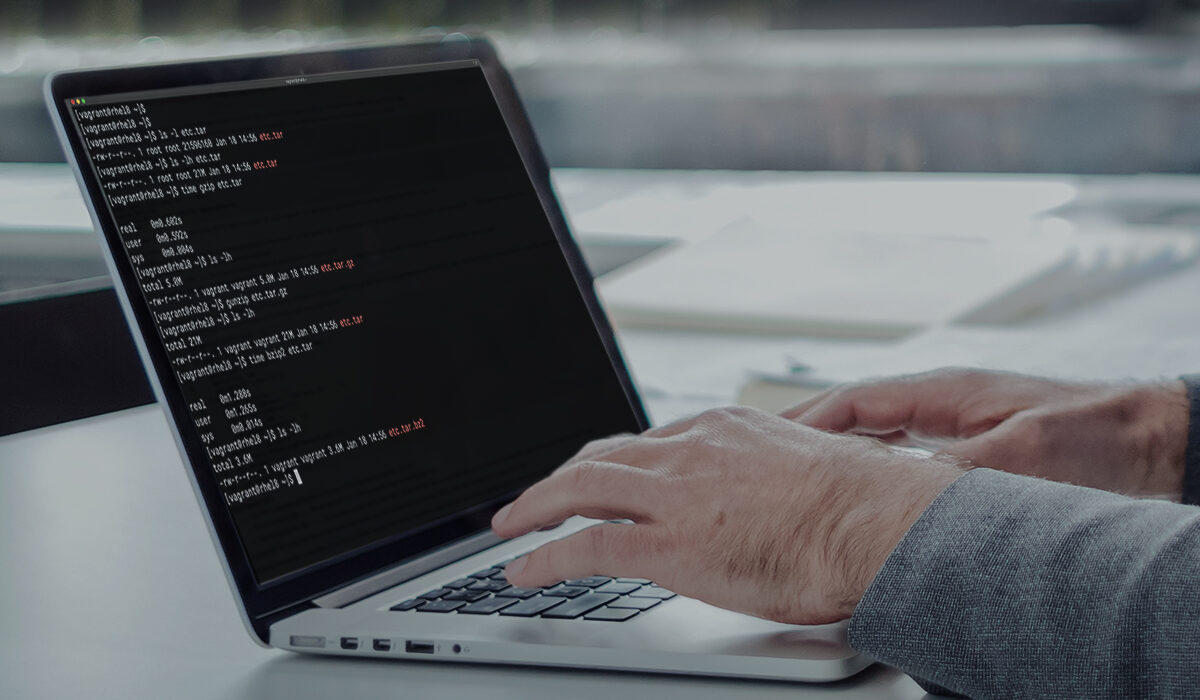
At the heart of Linux mastery lies the ability to move through the directory structure with ease. The most fundamental command is pwd (print working directory), which displays your current location within the filesystem—essential for orienting yourself when you feel lost. To see what’s inside that location, you use ls, which lists files and directories; add options like -l for a detailed long list (showing permissions, ownership, and size) or -a to reveal hidden files (those starting with a dot). Moving to another location is done with cd (change directory), such as cd /home/user/Documents or cd .. to go up one level. For a quick return to your home directory, simply typing cd with no arguments works perfectly. Together, these commands allow you to explore the entire Linux filesystem hierarchy, from root (/) down to the deepest subfolder.
Viewing and Inspecting Files: Reading Without Editing

Once you’ve navigated to a file, you often need to view its contents without accidentally modifying them. The simplest tool is cat (concatenate), which dumps the entire file to the terminal—ideal for small files like configuration snippets or short logs. For longer files, less is indispensable: it shows content one screen at a time, allowing you to scroll up and down with arrow keys or Page Up/Down, and press q to quit. Similarly, head and tail show the beginning or end of a file, respectively; tail -f is particularly powerful as it follows a file’s growth in real-time, perfect for watching live log updates. To quickly peek at the first few lines of many files or to count lines, words, and characters, wc (word count) provides those statistics. These commands help you inspect logs, read documentation, and verify file contents without opening a full editor.
File and Directory Operations: The Core Toolkit
Managing your data means creating, moving, copying, and deleting items. To create an empty file, you can use touch (which also updates a file’s timestamp). For directories, mkdir makes a new folder, with -p allowing you to create nested directories like mkdir -p project/src/lib. Copying is done with cp—cp file1.txt file2.txt duplicates the content, and cp -r folder1 folder2 recursively copies entire directories. Moving or renaming relies on mv, which is versatile: mv oldname.txt newname.txt renames, while mv file.txt /target/directory/ moves it. Removing files uses rm (be extremely careful, as deletion is permanent in Linux), with rm -r for directories and rm -f to force removal without prompts. To delete an empty directory, rmdir exists, but rm -r is more common for non-empty ones. These commands form the backbone of everyday file management, so understanding their flags and risks is crucial.
Permissions and Ownership: Security Essentials

Linux’s multi-user nature demands control over who can read, write, or execute files. The ls -l command shows permission strings like -rw-r--r--, which break down into owner, group, and others access. To change permissions, use chmod (change mode), either with symbolic notation (chmod u+x script.sh adds execute for the user) or octal numbers (chmod 755 script.sh gives full rights to owner and read/execute to others). Ownership is managed by chown (change owner), e.g., chown user:group file.txt, and chgrp changes only the group. Understanding these commands is non-negotiable when securing sensitive files or making scripts executable. Additionally, the umask command sets default permissions for newly created files, shaping your working environment’s security posture.
Process Management: Taking Control of Running Tasks

In Linux, every running program is a process with a unique ID (PID). To see what’s happening, ps lists processes for your current session; ps aux shows all processes system-wide with detailed status. A more dynamic, real-time view comes from top (or its enhanced successor htop, which you may need to install), displaying CPU, memory usage, and a constantly updating list of processes—press q to exit. To stop a stubborn process, you first find its PID via ps or pgrep, then terminate it with kill. For example, kill 1234 sends a gentle termination signal; kill -9 1234 forces an immediate stop (like pulling the plug). If a process is running in the foreground and freezing your terminal, press Ctrl+C to interrupt it, or Ctrl+Z to suspend it (then bg to run in background or fg to bring it back). Managing processes ensures your system remains responsive and allows you to cleanly stop misbehaving applications.
Getting Help: The Linux Manual
No one memorizes every command option. Linux provides built-in documentation via man (manual), e.g., man ls opens the complete reference for ls, including all flags and examples. Navigate with the same keys as less and press q to exit. For a quicker summary of common options, many commands accept --help, like cp --help. Additionally, whatis gives a one-line description of a command, while info offers more structured, hypertext-style documentation for GNU tools. Mastering man pages is a superpower: they contain everything from command syntax to related files and known bugs. Whenever you’re unsure, reaching for man is faster than searching the web and keeps you inside the terminal.
Text Processing and Searching: Power Tools for Data
Linux shines at manipulating text streams. The universal search tool is grep, which prints lines matching a pattern: grep "error" log.txt finds all errors. Use -i for case-insensitive search, -r to search recursively through directories, and -v to invert (show non-matching lines). For finding files by name (not content), find is incredibly flexible: find /home -name "*.txt" locates every text file. More advanced searches can filter by size, modification time, or permissions. Once you have output, you can transform it with sed (stream editor) for substitutions like sed 's/old/new/g' file.txt, or awk for column-based processing (awk '{print $1}' prints the first field). Chaining these together with pipes (|)—e.g., ps aux | grep firefox—creates sophisticated one-liners that replace dozens of lines of code in other systems.
Compression and Archiving: Bundling Files
Transferring or backing up multiple files often requires archiving. The classic tool is tar (tape archive): tar -cvf archive.tar folder/ creates an archive (c=create, v=verbose, f=file), while tar -xvf archive.tar extracts it. For compression, add -z for gzip (giving .tar.gz) or -j for bzip2 (.tar.bz2). For quick, space-efficient compression of single files, gzip filename replaces the file with a .gz version; gunzip reverses it. Similarly, zip and unzip work with Windows-compatible .zip files. Understanding these commands is vital for distributing software source code, backing up projects, or unpacking downloaded applications.
Networking Commands: Connecting and Diagnosing
To interact with networks, start with ping to test connectivity to a remote host (e.g., ping google.com; stop with Ctrl+C). View your own network configuration using ip addr (modern replacement for ifconfig) or ip link. For checking open connections and listening ports, ss (socket statistics) is faster than the older netstat—e.g., ss -tuln shows listening TCP/UDP ports. To download files from the internet, wget is reliable for HTTP/HTTPS/FTP, while curl offers more protocol flexibility and is often used in API testing (curl https://api.example.com/data). For remote login, ssh user@hostname connects securely to another Linux machine. Finally, traceroute maps the network path to a destination, helping diagnose routing issues. These commands turn your terminal into a powerful network diagnostic and data transfer tool.
Disk Usage and Storage: Monitoring Capacity
Running out of disk space can cripple a system. Check overall filesystem usage with df -h (disk free, human-readable sizes like GB/MB). To see which directories are consuming the most space, du -sh * shows summarized sizes of items in the current folder, and du -h --max-depth=1 provides a deeper breakdown. For finding large files, combine find with size criteria: find / -type f -size +100M -exec ls -lh {} ; lists all files over 100 megabytes. The lsblk command lists block devices (disks and partitions), while fdisk -l (requires root) shows detailed partition tables. Monitoring disk usage regularly prevents unexpected “No space left on device” errors that can halt applications and logging.
User Management and Switching: Multi-User Operations
Even on a single-user desktop, understanding user commands is useful. The whoami command prints your current username, while id shows your user ID, group memberships, and more. To switch to another user, use su username (substitute user) – if no username is given, it tries to become root. A safer, more controlled method is sudo (superuser do), which executes a single command with elevated privileges, logging the action: sudo apt update. On systems where you need a persistent root shell, sudo -i gives an interactive session. To add or modify users, you’ll need root: useradd creates an account, passwd sets its password, and usermod changes properties like group membership. For day-to-day work, avoiding the root account and relying on sudo is a best practice that minimizes accidental damage.
Aliases and History: Working Smarter

Finally, two productivity boosters: history shows your command history, numbered. You can rerun a command by typing !number (e.g., !42). Use Ctrl+R for reverse interactive search—start typing part of a previous command, and it fills in. To reduce typing for frequent command combinations, create aliases with alias. For example, alias ll='ls -alF' makes ll a shortcut. Persistent aliases are stored in your shell’s startup file, typically ~/.bashrc or ~/.zshrc. To see all current aliases, just type alias. These small customizations, combined with an understanding of command history, dramatically speed up your workflow and make the terminal feel like home.
By internalizing these essential commands—navigation, file operations, viewing, permissions, processes, help, text processing, archiving, networking, disk usage, user switching, and shortcuts—you transform from a Linux novice into a confident, self-sufficient user. Each command has depths and nuances, but this core set handles the vast majority of daily tasks across any Linux distribution. Practice them regularly, refer to man pages often, and you’ll soon find the command line more efficient than any graphical interface.
Conclusion
Mastering the essential Linux commands outlined above is not merely about memorizing a list of syntax—it is about adopting a new mindset of efficiency, transparency, and control. Unlike graphical interfaces that often obscure the underlying operations, the Linux command line places the full power of the operating system directly at your fingertips. While the initial learning curve may feel steep, each command you practice builds a foundation for deeper understanding: navigation becomes instinctive, file management becomes precise, and process control becomes second nature. The true beauty of Linux commands lies in their composability—using pipes, redirections, and scripting, simple tools like grep, awk, and find combine to solve complex problems that would require cumbersome point-and-click workflows elsewhere. Remember that no expert memorizes every flag or option; the man pages and --help flags are always there as your trusted references. As you continue your Linux journey, you will discover that these commands scale seamlessly from a single Raspberry Pi to a cluster of enterprise servers. Embrace the terminal, practice daily, and soon you will find yourself not just using Linux, but truly commanding it. The skills you gain here are timeless, portable across distributions, and highly valued in development, system administration, and cybersecurity. So open your terminal, type ls to see where you are, and take the first step toward becoming a proficient Linux user—one command at a time.